CatFox Tasker

A ToDo App that does what you need, without getting in the way.

CatFox Tasker — Tasklist mode

Why this exists

As a student, I needed a solid task manager that actually works for me. I need one place to manage my daily routine, weekly schedules, different tasklists, and calendar.

Most apps either try to do everything and end up cluttered, or they're too restrictive for anything beyond a grocery list.
So I built my own.

Originally written in Electron a few years ago. Now rebuilt mostly from scratch in .NET and Avalonia. Cleaner, faster, and with more features.

What it does

CatFox Tasker gives you four modes that each cover a different part of your day:
Tasklists to organize tasks and notes in custom lists, a daily Routine planner to manage your daily tasks, a weekly Timetable to check your schedule at a glance, and a calendar to check deadlines and events.

Daily tasks and your weekly schedule remain independent from the rest of the app, while the calendar shows all entries with a due date from your tasklists.

Trying to strike a balance between simplicity and functionality, without overwhelming you with overlapping features you don't need.

Key Features

Tasks & Notes

Tasks have checkboxes, notes don't. Use both in the same lists to structure it the way you want.

Basic formatting

Bold, italic, underlined, and different font sizes. Applied per entry, so you can organize your lists and notes visually.

Due dates & recurrence

Give tasks a due date, optionally with a time. Set them to repeat daily, weekly, bi-weekly, monthly, or yearly.

Themes & custom colours

Multiple built-in themes plus a fully adjustable colour palette. Make it look the way you want.

Local & offline

All data stays on your device. No account, no cloud sync, no internet needed.

Lightweight

Starts fast, runs quietly. No background services, no telemetry, no bloat.

Details

Tasklist

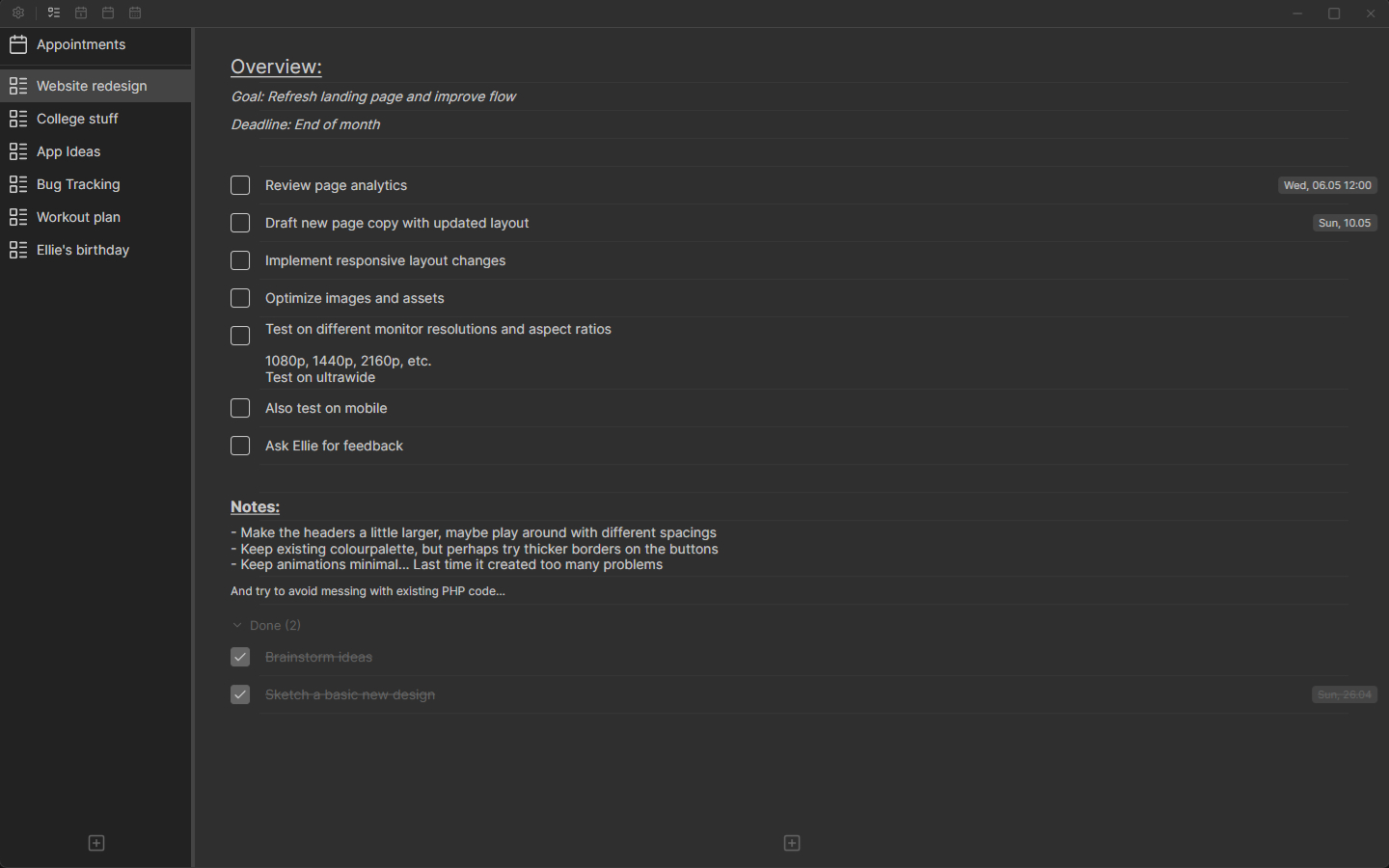
The Tasklist-Mode is the first of four modes, and the one you'll probably use the most. It's a simple list of entries that can be either tasks or notes.

  • Tasks come with a checkbox. Notes don't. Using them together greatly helps in structuring your lists.
  • Done section: Checked tasks will be moved to a collapsable "Done" section at the bottom, so you can keep your lists tidy without losing the satisfaction of checking things off. Their position in the list is remembered, so when you uncheck them they go right back where they were.
  • Formatting: Bold, italic, underlined, and different font sizes can be applied to each entry, helping you visually organize your lists. Make important things stand out, create headings for different sections, or just add some style.
  • Due dates: Optionally assign a date (and time) to any task. Recurring entries are supported too, which can be useful for homework deadlines, birthdays, and more.
  • Split view: Create and manage your lists on the left, and see the contents of the selected list on the right. Use the Resizer bar inbetween to adjust the width of the panels to your liking.
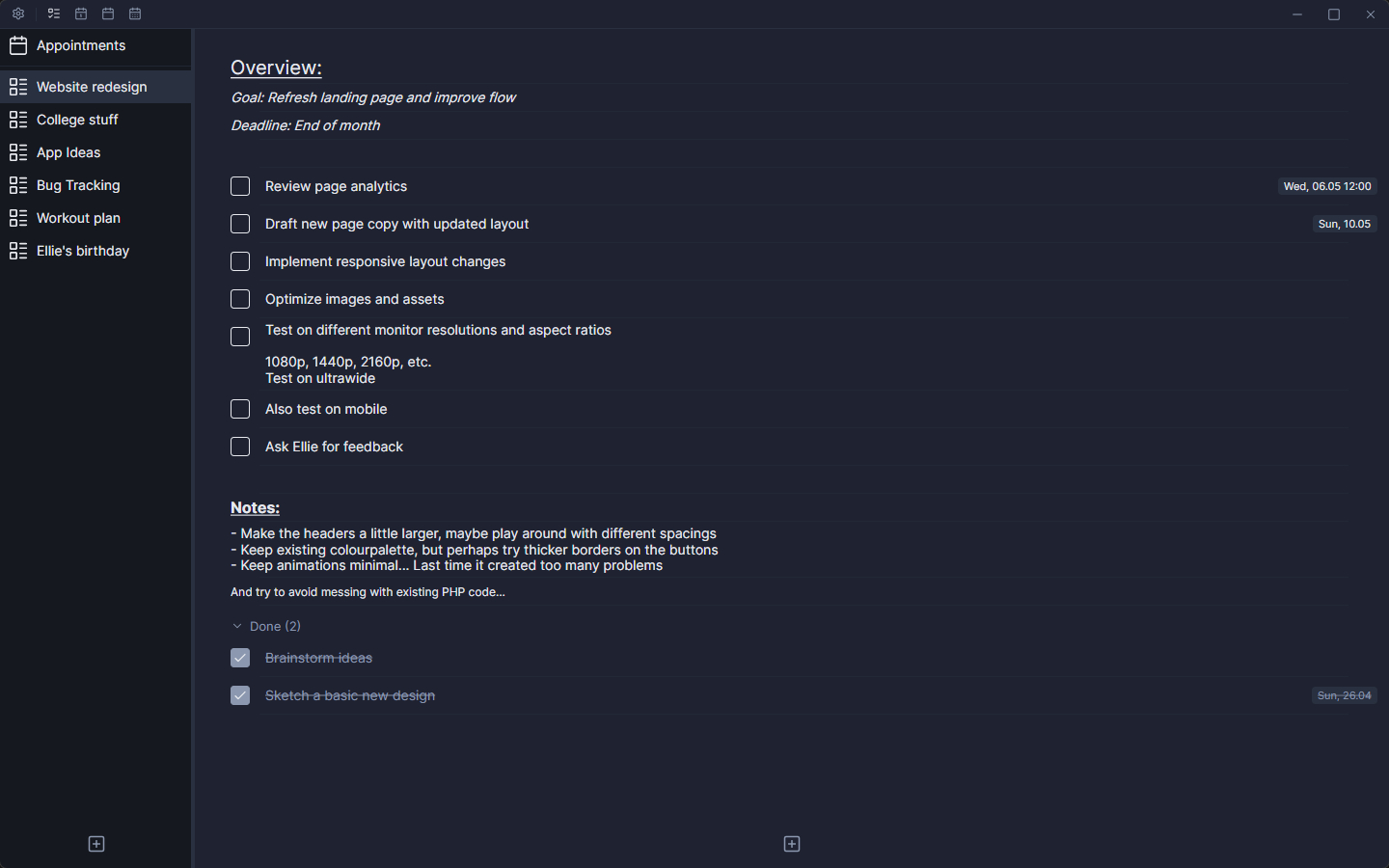
Tasklist mode

Routine

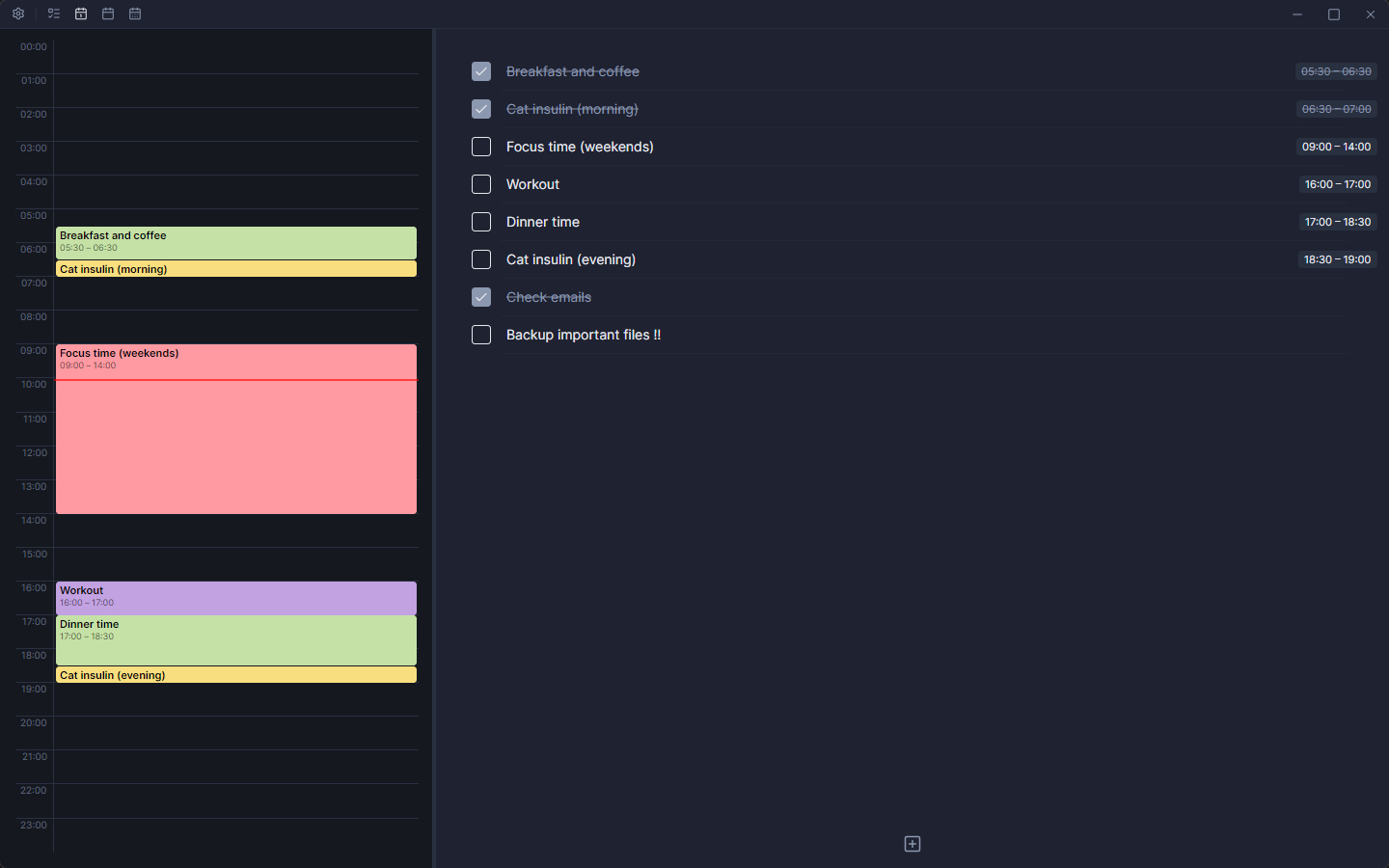
The Routine-Mode is the second of four modes, designed for structuring your daily rhythm. It's independent from the other modes.

  • Split view: An hourly timetable on the left, and a daily task list on the right. Use the Resizer bar to adjust the panels' width to your liking.
  • Time blocks: Click on the timetable to add a task directly, or create an entry in the list and give it a due time. In both cases the task will be displayed in both panels. Each block can be colour-coded.
  • Daily tasks: Every new day the App is opened, the checked tasks on the right will be unchecked, so you can restart your routine without any hassle.
Routine mode

Timetable

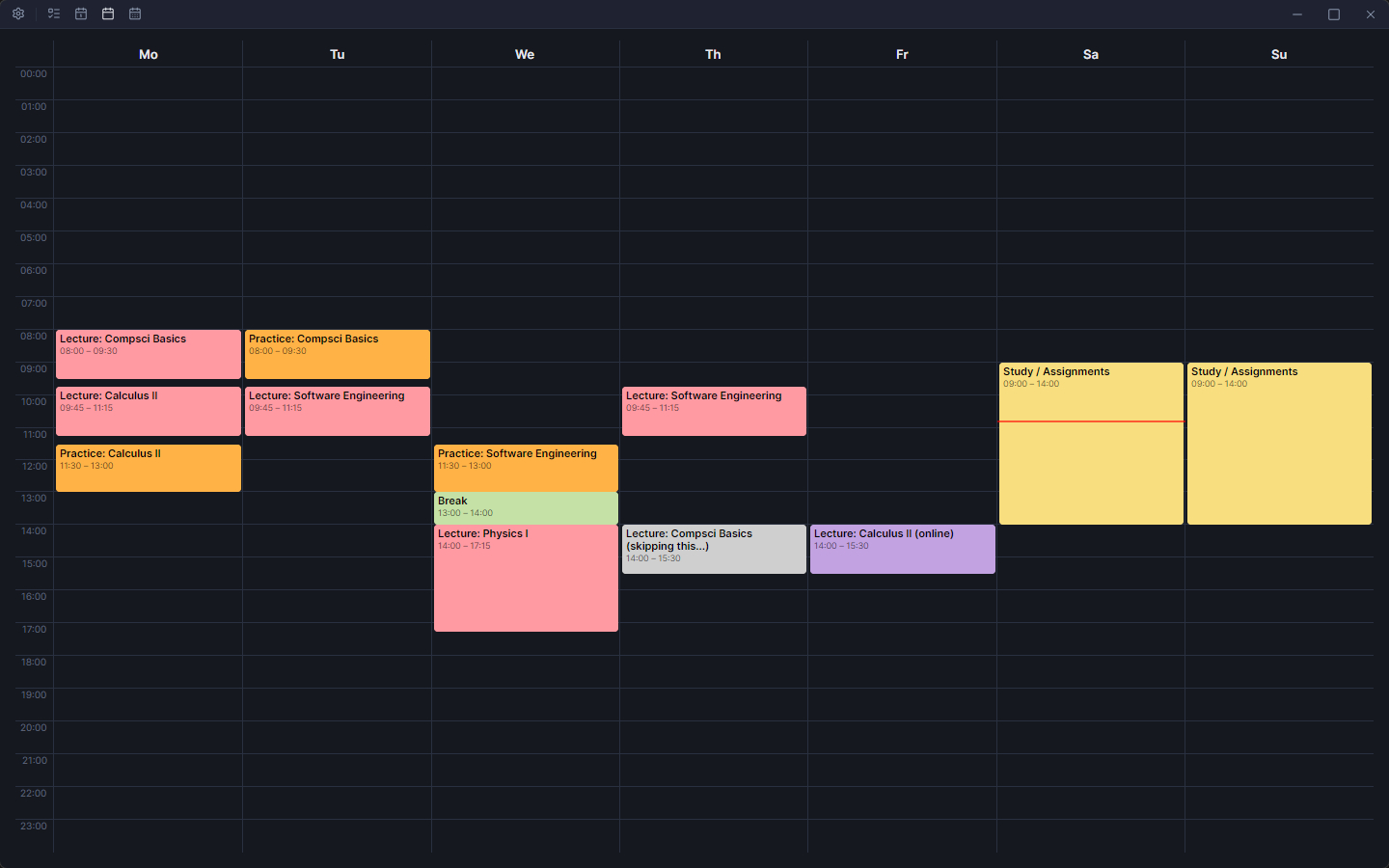
The Timetable-Mode is the third of four modes, made for organizing your weekly schedule (e.g. college classes) from Monday to Sunday, one hour per cell. It's independent from the other modes.

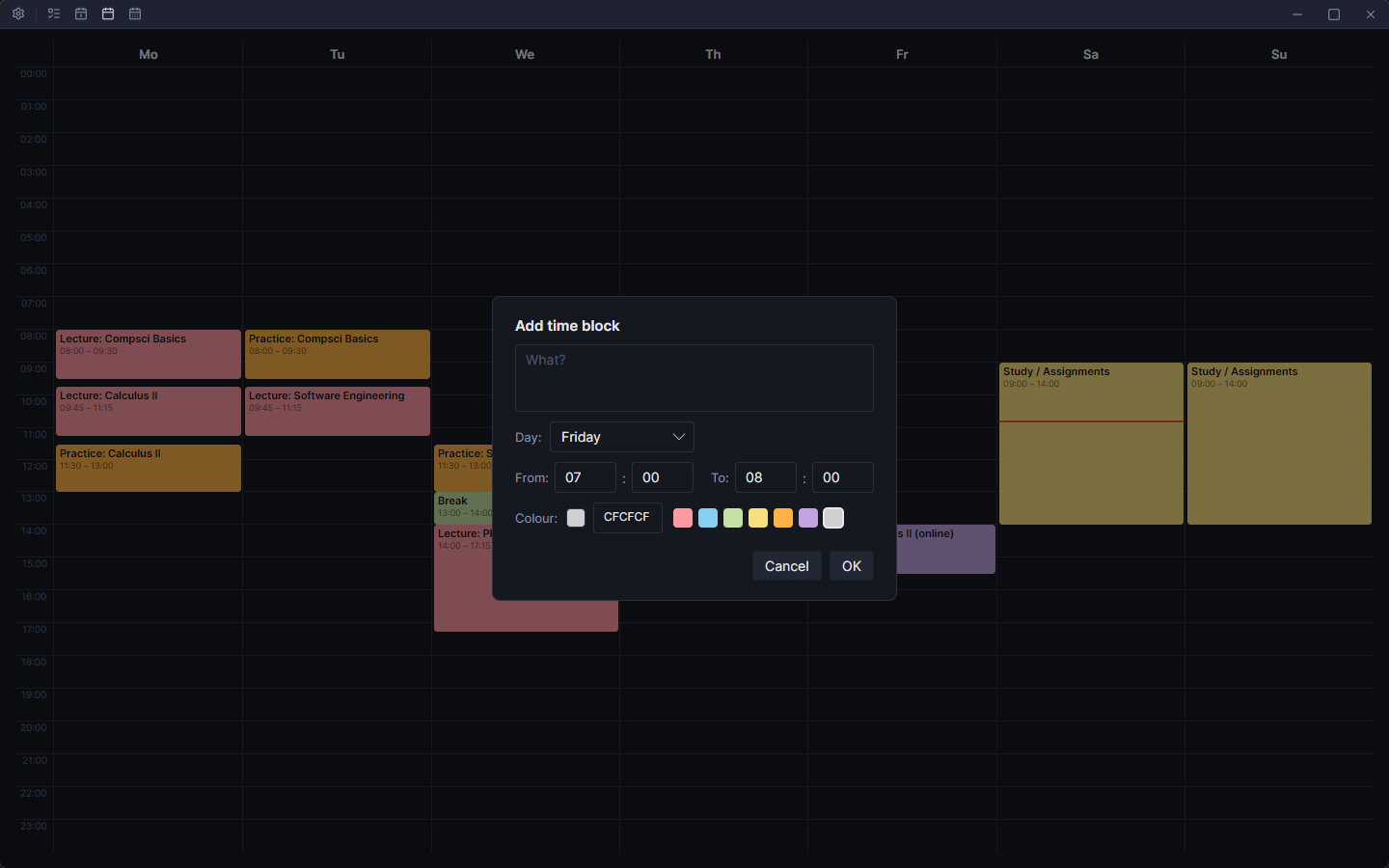
  • Time grid: Each day gets a column, each hour a row. Add time blocks with a title, a start and end time, and a colour to quickly tell them apart.
  • Colour-coded blocks: Use different colours for lectures, practice lessons, study time, breaks, etc.
  • Independent: Just like the Routine-Mode, the Timetable doesn't share data with your tasklists. It's an additional clean, static week planner you can set up to manage your schedule.
Timetable mode — week grid
Timetable mode — adding a time block

Calendar

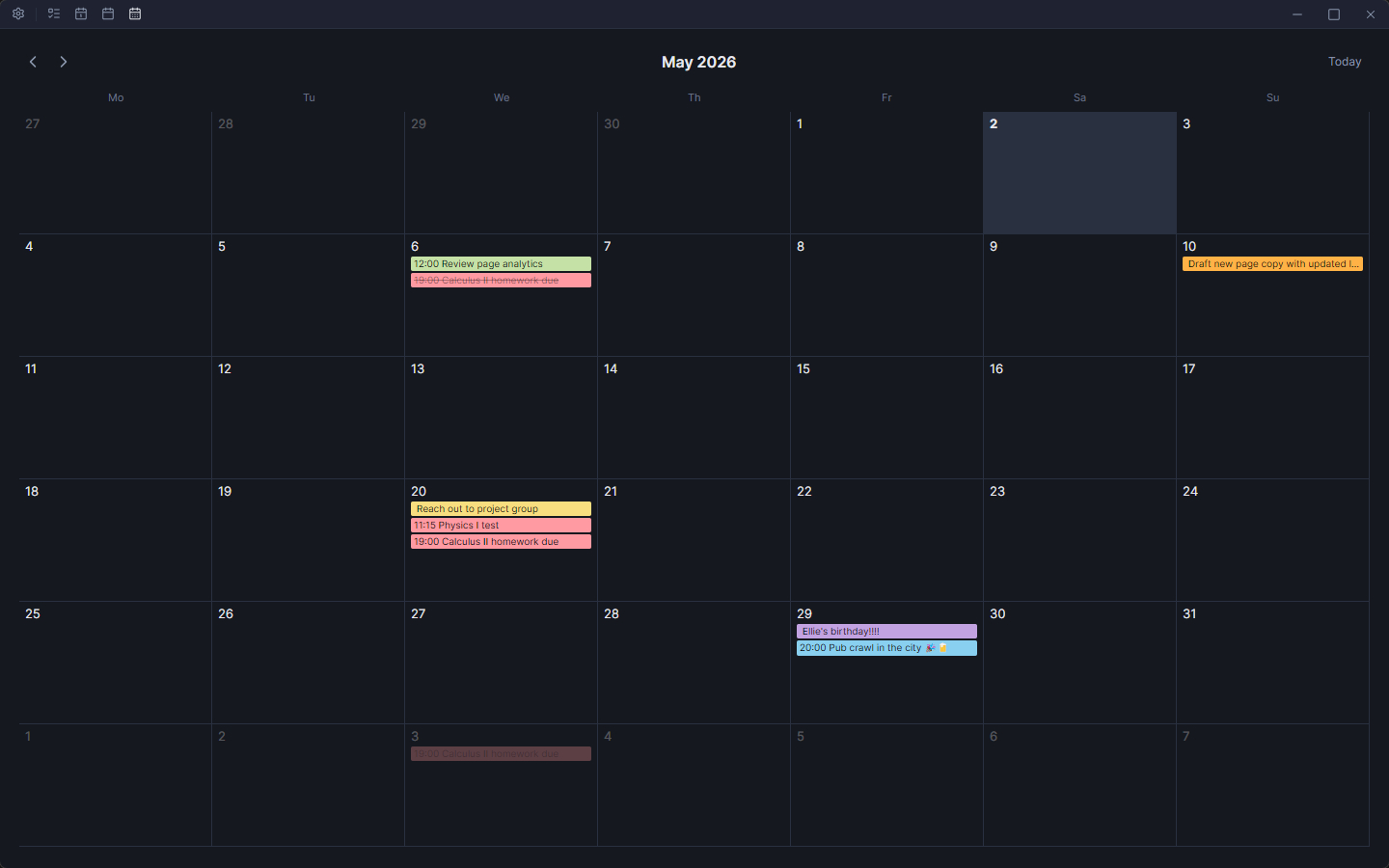
The Calendar-Mode is the fourth and last mode. It's connected to your tasklists, as it shows all entries that have an attached due date, laid out as a clean monthly calendar.

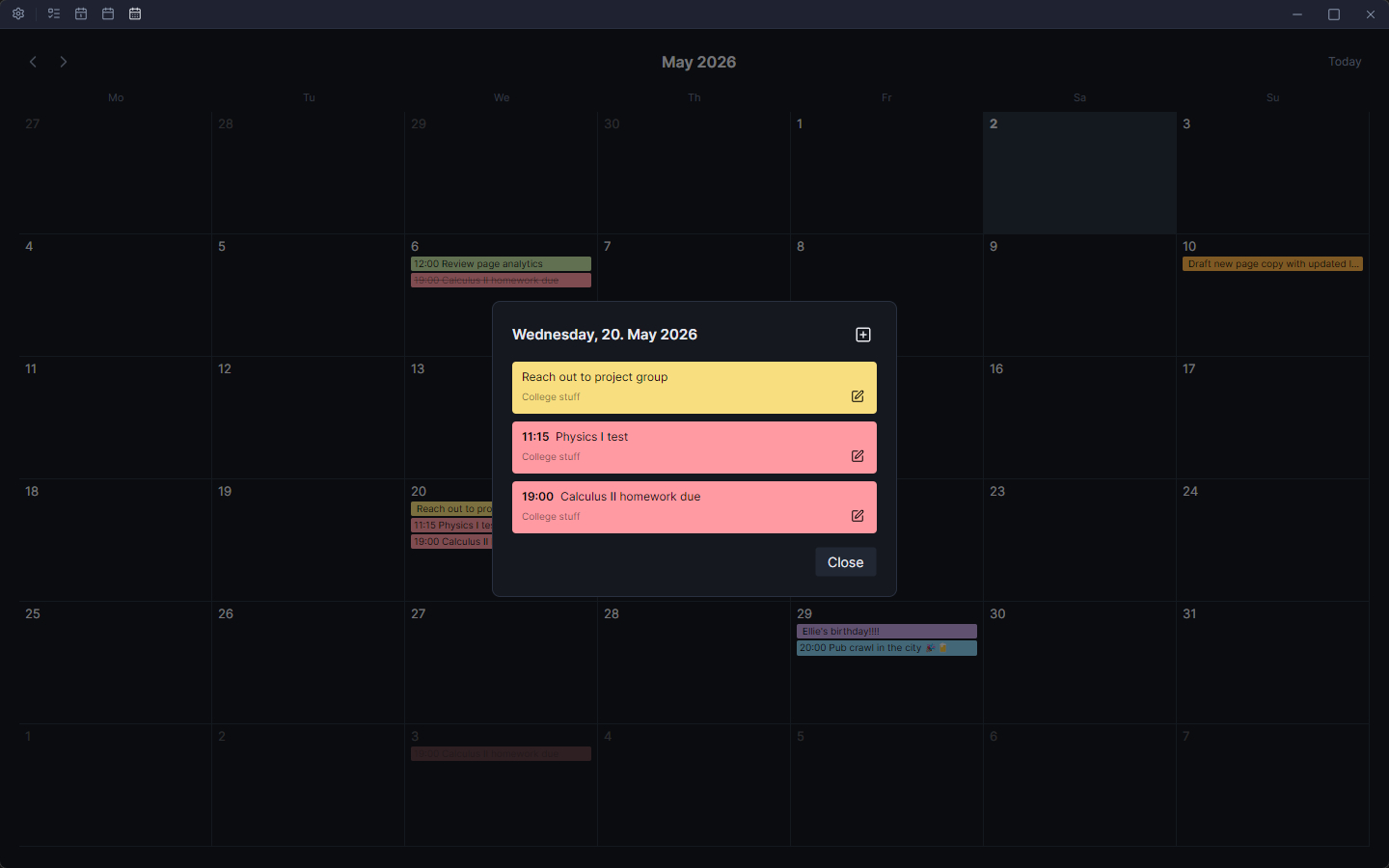
  • Month overview: Entries are shown directly in their day cells, colour-coded so you can tell them apart at a glance. Navigate between months with the arrow buttons.
  • Day details: Click on a day to open a detail overlay showing all entries for that date. Here you can add new entries, edit existing entries, or click on an entry to jump straight to its position in the Tasklist-Mode.
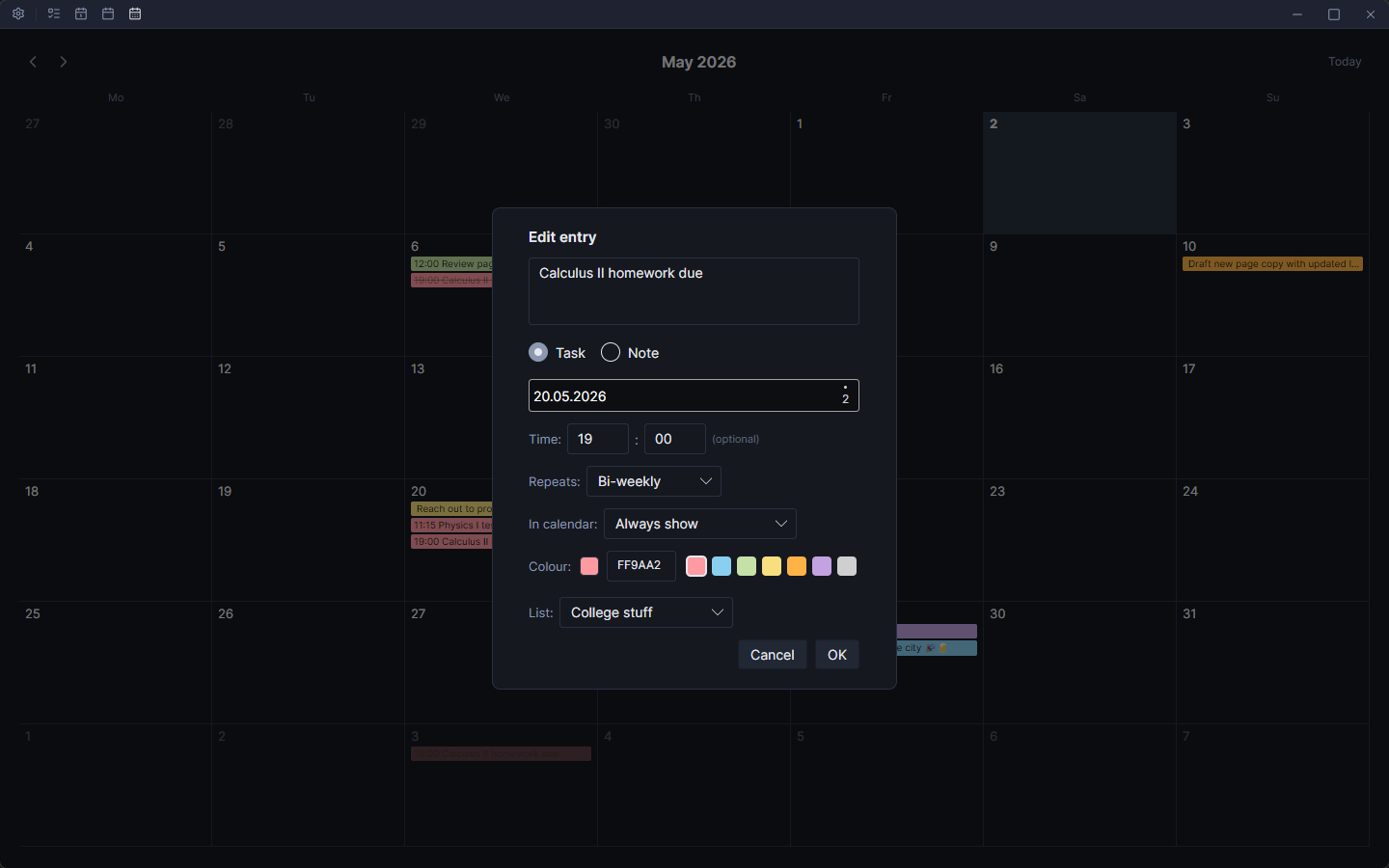
  • Add and edit: Create or edit entries directly from the calendar. New entries go into the Appointments list by default, but you can assign them to any of your existing lists instead. Set entries to repeat on a schedule (bi-weekly, monthly, etc.), pick a colour, and more. All without switching back to your tasklist.
Calendar — month view
Calendar — day detail overlay
Calendar — editing an entry

Themes

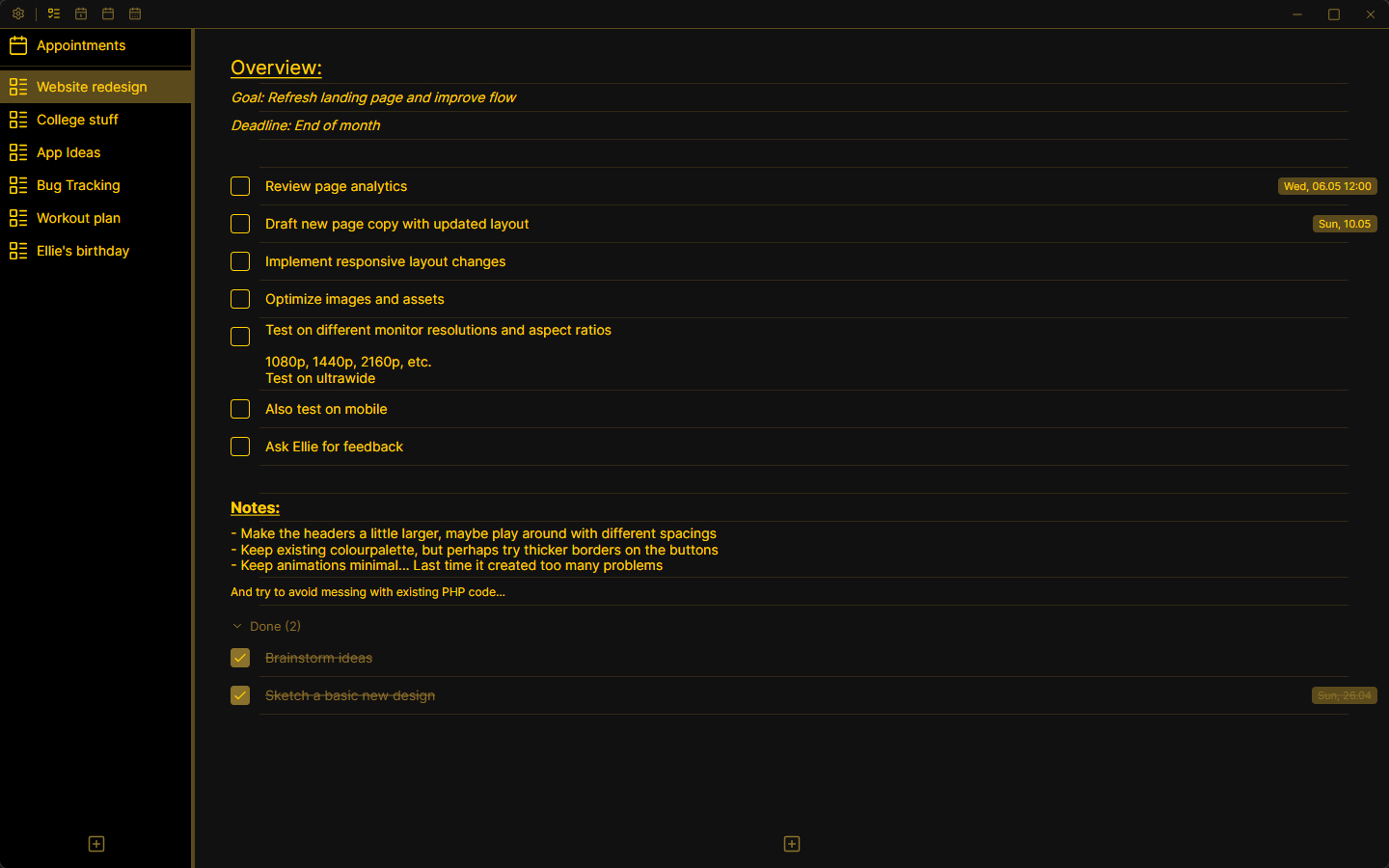
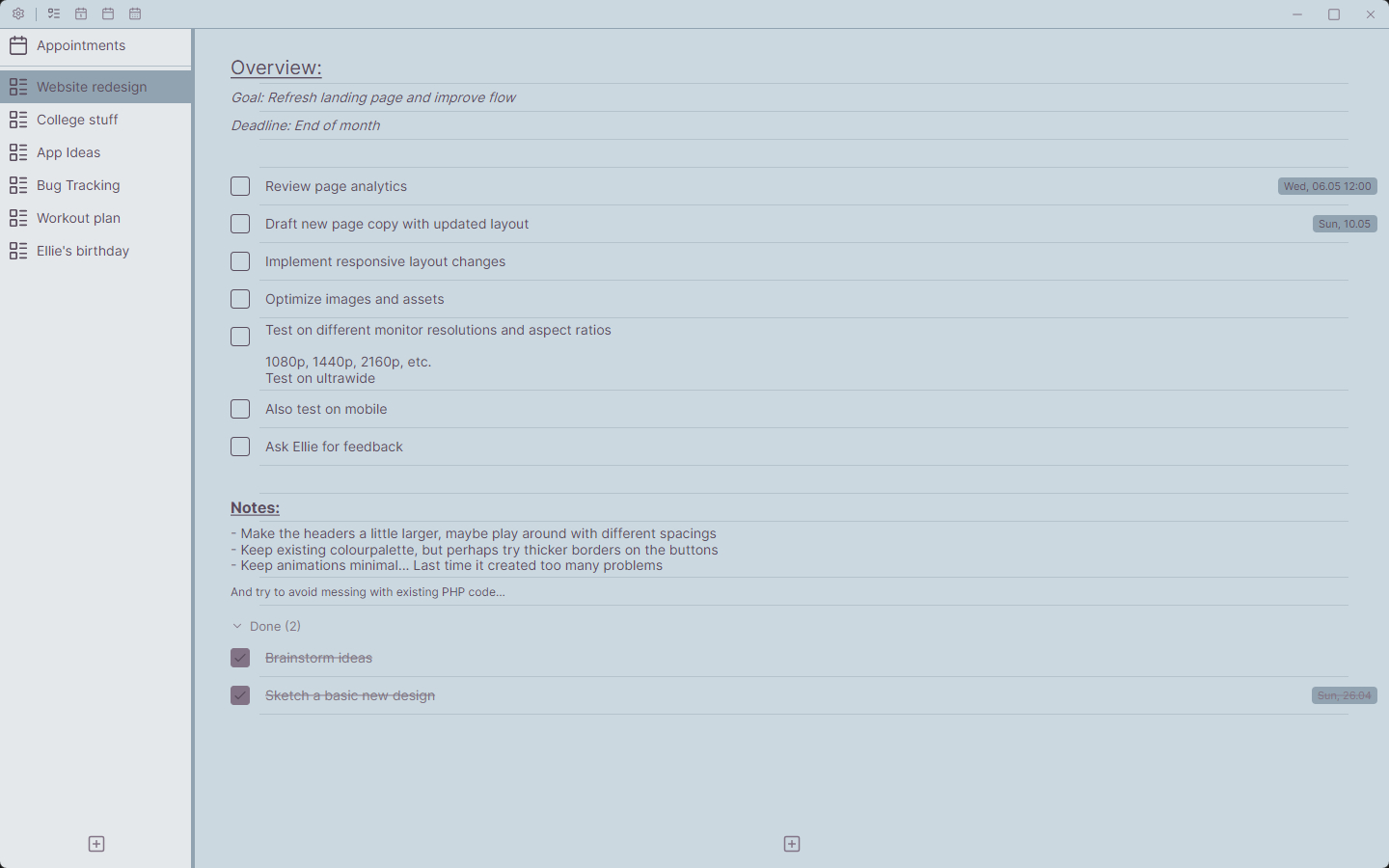
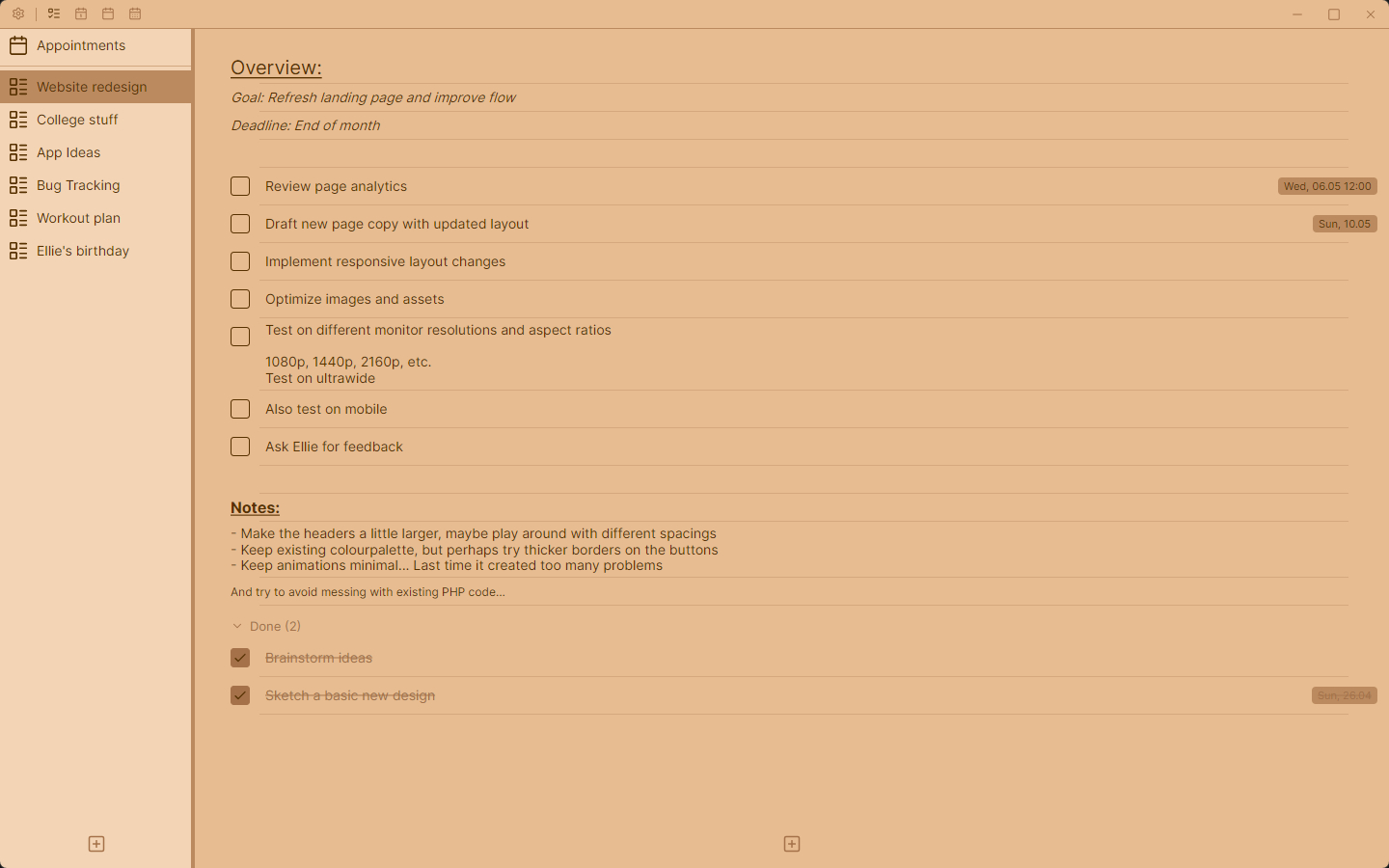
Just like other CatFox apps, Tasker includes multiple built-in themes and an entirely customizable colour scheme. Choose a look that fits your workspace, or adjust the palette to your preference.

Pick what looks good to you, or make it match your system.

Theme: CatFox
Theme: Carbon
Theme: Cosmos
Theme: Moonveil
Theme: Toffee

Try it out

CatFox Tasker is free. Download it and see if it works for you.

FAQ

Is an internet connection required to use the Software?

No. CatFox Tasker is designed for offline use with local data.

How do the four modes interact with each other?

The Calendar-Mode shows entries from your tasklists that have a due date assigned, so those two are connected.
Routine- and Timetable-Mode are fully independent from everything else.

Can I use the entire app without paying?

Yes. CatFox Tasker is entirely free to use. Donations are welcome, but optional.

Where and how is my data stored?

In your system's app data directory (e.g. %appdata% on Windows). App data is saved in an SQLite database, while app configurations like themes are stored in a JSON file.

Are more features planned?

Yes. Development is ongoing, but the focus remains on maintaining a clean and simple user experience.
Feature bloat is meant to be avoided.

Are there notifications?

No. Currently, there are no notification features implemented. They might come with a future update though.

Specifications

Framework .NET 10
UI Framework Avalonia 12
Save format SQLite for data, JSON for settings
Supported languages English, German